SVS_Firmware_Repository
SVS Control Module STABLE Firmware
For BETA firmware versions click here
For IR Code SD Card Files click here
For Serial Commands click here
Update Instructions
SVS Management Utility
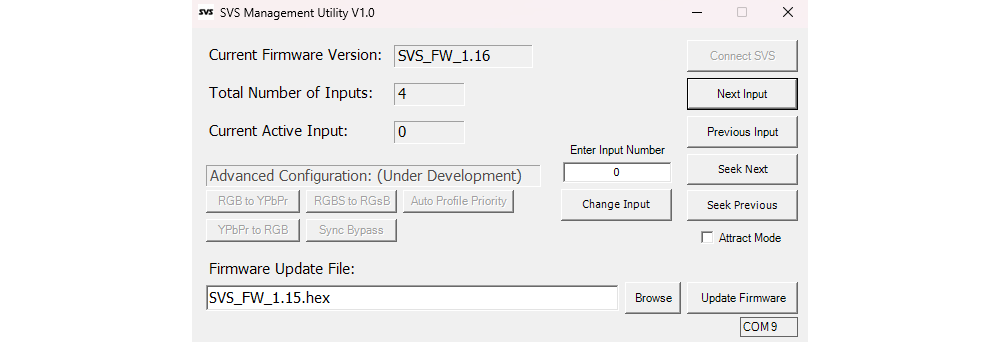
Based on the foundation created by KnightNZ in the SVS_Flash program I have expanded it into a more comprehensive firmware update and management utility. The SVS Management Utility allows you to connect to your SVS, check current firmware version, install new firmware updates, and manually control the SVS. In future releases the SVS Management Utility will also allow you to configure advanced settings on the SVS in bulk using your computer instead of manually toggling those settings with your SVS IR remote.
SVS Management Utility 1.4 adds auto update capability. It can automatically download the latest firmware as well as check for updates to the management utility scripts. This version of the management utility is no longer packaged as a .exe file due to antivirus false positives that were caused by the compilation tools I was previously using to compile the script as an exe. The utility is now distributed as a powershell script with a .bat file used to launch the script.
Download the latest SVS Management Utility
SVS Management Utility Instructions
Windows Users
- Download the latest Firmware Update file and unzip it somewhere on your computer.
- Double click the .bat file labeled “SVS Management Utility.bat”
- The SVS Management Utility will search the firmware update repository and find the latest firmware file and download it for you. If you want to install a different firmware version than the latest stable firmware you can use the “Browse” button to look for a different firmware file on your PC.
- Click the “Connect SVS” Button. The SVS Management Utility will search for the correct COM port for updating your SVS. The SVS uses a CH340 serial chip, so the firmware update tool searches for any CH340 devices and selects the first one it finds. If you have multiple CH340 devices connected at once you can click “No” and you will can manually enter the correct COM port for your SVS.
- Once the SVS Management Utility connects to your SVS you will see the current firmware version that is installed on your SVS, the total number of inputs connected to your SVS, and the current active input of your SVS.
- To update your firmware, simply click the “Firmware Update” button and the SVS Management Utility will flash the new firmware file and alert you when the flash is complete. It will update the current firmware version to reflect the newly installed firmware on your SVS.
Mac Users (Beta)
-
Download the latest Firmware Update file and unzip it somewhere on your computer.
-
Follow the instruction at https://brew.sh to install Brew.
-
Install AVRDUDE using Brew with the following terminal command:
brew install avrdude -
In the terminal, navigate to the directory where you unzipped the SVS Management Utility.app file and run these two commands:
chmod +x "Svs Management Utility.app/Contents/MacOS/Svs.App"xattr -cr "SVS Management Utility.app" -
You only need to run this command once when you download the latest app. After that you can launch the app by double clicking on it.
In addition to firmware updates you can also use the SVS Management Utility to control your SVS.
- Next Input, Previous Input: These buttons allow you to manually cycle the input selection up or down by one input on your SVS. ““Requires minimum SVS Firmware Version 1.12””
- Change Input: This button allows you to manually change to the input number specified in the “Enter Input Number” text box. ““Requires minimum SVS Firmware Version 1.12””
- Seek Next, Seek Previous: These buttons allow you to manually seek to the next or previous active input if you have multiple video sources active at the same time. This function skips all inactive inputs. ““Requires minimum SVS Firmware Version 1.14””
- Attract Mode: This checkbox allows you to turn “Attract Mode” on or off. ““Requires minimum SVS Firmware Version 1.14””
- RGB to YPbPr: Opens a menu that allows you to bulk enable or disable the RGB to YPbPr transcoder module for each input. ““Requires a RGB to YPbPr transcoder module””
- YPbPr to RGB: Opens a menu that allows you to bulk enable or disable the YPbPr to RGB transcoder module for each input. ““Requires a YPbPr to RGB transcoder module””
- RGBS to RGsB: Opens a menu that allows you to bulk enable or disable the RGBS to RGsB conversion for each input. ““Requires V3 SCART or V3 VGA Modules””
- Sync Bypass: Opens a menu that allows you to bulk enable or disable the Sync Bypass option for each input. ““Requires V3 SCART modules””
- Auto Profile Priority: Opens a menu that allows you to bulk enable or disable the Auto Profile transmission over VGA or IR blaster for each input. ““Requires minimum SVS Firmware Version 1.20””
- IR Code Editor: Opens a menu that allows you to bulk edit the IR codes that are saved to each input for the IR Blaster functionality of the SVS Control Module. There are also IR code presets for the Retro Tink 4k, Retro Tink 5x, OSSC and OSSC Pro. ““Requires minimum SVS Firmware Version 1.16””
Thanks to the fantastic work of Thiaramus, the firmware update script has been ported to Linux
Linux Users
- Install AVRDUDE using your package manager:
Open a terminal and run the following command to install AVRDUDE:
sudo apt-get install avrdude
For your specific Linux distribution, you may need to use a different package manager or command to install AVRDUDE. The example above is for Ubuntu and Debian based distributions.
- Run in the terminal:
bash SVS\ Firmware\ Update\ Tool\ v1.0\ Unix.sh
Firmware Update Downloads
Version 1.21 (2026-08-03)
Download
Changelog:
- Fixed a bug with the YPbPr to RGB and RGB to YPbPr transcoder communication system that caused periodic corruption of the communication between the control module and the transcoders, preventing accurate input based enable/disabling of the transcoders.
- Removed experimental IR codes that conflict with the PixelFX Morph IR remote.
- Added the SVS Management Utility Mac arm64 beta application.
Version 1.20 (2026-07-02)
Download
Changelog:
- Fixed auto switch deselect bug. Firmware 1.16 introduced a bug which prevented auto switching back to a previous active input when more than one input is active under specific conditions.
- Increased input deselect coast time from 2 seconds to 5 seconds. This helps prevent an input from deselecting during resolution change events where the sync signal may be interrupted for a period of time.
- Complete rewrite of the serial parser. Completely eliminated the use of strings in exchange for fixed char buffers. Achieves safer memory management and crash resistance in the event of a serial buffer overflow.
- Added HDMI parallel mode for HDMI modules. HDMI modules can change active input without affecting analog inputs. Dual simultaneous output through both HDMI and Analog now possible.
- Added a user controllable toggle for HDMI parallel mode. HDMI modules can operate independently as a second input channel, or they can operate as normal input modules on the same channel as the analog inputs.
- Added manual HDMI parallel control through remote and pushbutton. Allows user to switch between manual control for analog inputs or HDMI inputs on the fly.
- Added user controllable toggle between HDMI inputs and Analog inputs to select which video channel is controlled by attract mode.
- Added HDMI module identification to the boot process of the control module so the control module can automatically identify and assign HDMI inputs to the second video channel for parallel mode.
- Added per input auto profile deprioritization option. This is ideal for users that have HDMI modded systems, where they are connecting both analog and digital inputs to the SVS simultaneously. This setting allows the user to select which input (analog or digital) is prioritized for auto profile loading when the console is powered on. This feature also applies to the IR blaster function.
- Added control system for controlling sync on green conversion and sync bypass options on V3 SCART and V3 VGA Input Modules.
- Added IR remote commands for controlling sync on green conversion and sync bypass options on V3 SCART and V3 VGA Input Modules.
- Added extra functions to the peripheral communication system for YPbPr to RGB and RGB to YPbPr transcoder modules to enable two way communication for advanced configuration.
- Added a routine to the serial SVS_Change_Input_”#” command to correctly identify HDMI parallel mode and switch only the video channel that corresponds to the requested input number, leaving any active input on the other channel untouched.
- Added Serial commands for all new toggleable features added in this firmware.
- Added new IR codes for future remote support.
- Optimized input auto deselection routine to save flash memory space and execute in fewer cycles.
- Optimized many functions throughout the firmware to save flash and memory resources.
- Adjusted IR remote receiver timing to reduce occasional errant double presses when a button on the IR remote is held for too long. (The SVS IR remote does not send a proper repeat flag when a button is held so repeat detection timing has to be manually tuned)
Version 1.16 (2025-12-08)
Download
Changelog:
- Fixed sync detection clock pulse width bug to improve reliability when reading sync data from sync shift register.
- Added a new Serial command system for reading and writing to the EEPROM so the SVS Management Utility can be used to modify settings in bulk. Example: Bulk editing of IR blaster codes.
- Added Serial commands for controlling the upcoming YPbPr to RGB Transcoder Module.
- Added extra functions to the peripheral communication system for future modules currently in development.
- Reverted SD Card IR code loading process back to pre 1.13 version. That change wasn’t particularly useful and consumed a lot of precious memory resources that were needed for the new features.
- Includes the SVS Management Utility V1.2 for Windows. V1.2 includes the new IR code editor, which allows bulk editing of IR blaster codes, includes presets codes for common scalers such as the Retro Tink 4k, 4kCE, 5x as well as the OSSC, and OSSC Pro.
Version 1.15 (2025-04-09)
Download
Changelog:
- Fixed bug with autodetection on 32+ input switch setups. This is a required update for the expansion kit and larger than 32 input switches.
- Fixed an order of operations bug with user defined IR code delay.
- Fixed bug with seek backwards function that could under the right circumstances cause the input number to seek to an out of range number (greater than the total number of available inputs)
- Improved seek behavior when no inputs are active. Seek will now jump to input 0 if no active inputs exist.
Version 1.14 (2025-03-11)
Download
Changelog:
- Added seek mode. Allows you to use the left/right buttons on the SVS remote to jump to the next/previous active input instead of manually cycling through all inputs one at a time. The up/down buttons still allow cycling one by one as with previous firmware versions.
- Added the ability to load a config file from the SD card to change settings such as whether the pushbutton is set to cycle inputs or seek active inputs, change the “Attract Mode” interval, and set the baudrate for the future RS232 module. Download Config File Here
- Added an interrupt to the control module pushbutton to cancel SD card reading and IR code transmission to speed up manual input cycling during IR code transmission sequence.
- Added a quasi-interrupt like function to the IR receiver to cancel IR code transmission, but not SD reading, to speed up manual input cycling during IR code transmission sequence. (true interrupt not feasible at this time)
- Added user defined IR code transmission delay time for SD card IR code files. (Was present in older firmware, but was temporarily removed (accidentally) in 1.13 as part of the SD card loading system rewrite)
- Added Power on/off option using the SVS IR remote and serial commands.
- Added “attract mode” option to automatically cycle through inputs at timed intervals. Improved from 1.14 BETA version, now uses seek function to only switch between active inputs.
- Optimized serial parser to significantly reduce dynamic memory usage.
- Updated peripheral communication system’s command set to reduce memory usage.
- Converted all 2 state variables from integer (we used to have it so easy) to Boolean to reduce memory usage.
Version 1.13 (2025-03-5)
Download
Changelog:
- Streamlined SD Card reading process for IR codes. Allows IR code sequences to be transmitted at a significantly faster interval (1.396 seconds faster per serial code slot)
- Input #0 “no input selected” can now be cycled to using the control module pushbutton as well as IR and Serial Up/Down commands. Previously input cycling would roll over to input 1, skipping input 0.
- Added more serial commands to the existing serial control system. See Here for details.
- Added wmic deprecation warning and instructions to the firmware update script for Windows 11 users.
Version 1.12 (2025-02-21)
Download
Changelog:
- Added 500ms delay to new input detection. This helps eliminate phantom input detection caused by occasional transient voltage spikes inside the switch
- Added USB based serial control system. Inputs can now be manually selected by passing serial commands to the SVS. See Here for details.
- Refined the peripheral communication system.
Version 1.10 (2025-02-06)
Download
Changelog:
- Fixed factory reset bug that prevented the user programmable “input up/down” buttons from being erased during the factory reset procedure.
- Fixed IR remote bug that caused the Retro Tink 4k remote’s “Profile 1” button to trigger the “input up” function if the user programmed the Retro Tink 4K remote AUX buttons as “input up/down”.
- Optimized input detection routine, reducing flash memory usage by 13%.
- Added initial support for peripheral communication system. Needed for future modules such as the RGB to Component Conversion module.